

SharePoint List vs. Project Intake Tool: How to Choose
SharePoint list or a project intake tool? When a list is enough, when it starts to hurt, and what changes when everything sits on the request.
Most teams that ask about a SharePoint list vs. a project intake tool already have a list. Requests come in through a Microsoft Form, land in the list, and for a while that works. Then more people get involved, and the list stops being the place where decisions happen. This post is about when that point comes, and what changes when you move to a tool built for intake.
What intake actually involves
Every intake process does roughly the same things. Requests come in. Someone scores them so they can be compared. The right people review them. Someone decides. And at some point a manager asks what's in the pipeline and why.
A SharePoint list handles the first part well. The rest usually happens somewhere else.
When a SharePoint list is enough
Plenty of teams run their intake on a SharePoint list, and it works. A few people send in requests, one manager reads them and says yes or no, and the list is where it's all written down. Microsoft Forms in front of it can take far more submissions than you'll ever get. If that's your setup, there's no reason to switch yet.
Where it starts to hurt
It gets harder once more than one person has to weigh in on a request.
Take an IT team that gets about 30 project requests a month. Three people score each one. An architect writes a short feasibility review. Finance adds a cost estimate. The requester gets a couple of follow-up questions.
With a list, that one request now lives in five places. The answers are in the list. The scores are in an Excel sheet someone keeps up to date by hand. The review is a Word document in a library, linked from the item if someone remembered. The discussion is in Teams. The follow-up questions and answers are in someone's inbox.
Each piece works fine on its own. The problem shows up later, when the steering group asks why one project got approved and another didn't. Nobody can open one page and show them. Someone ends up spending an afternoon pulling it back together.
You can connect some of it with lookup columns and Power Automate. Microsoft points you that way anyway: its older built-in approval workflow for SharePoint was fully retired in April 2026, and Power Automate is the recommended replacement. But every flow you build is one more thing somebody has to keep running.
What it costs you
None of this shows up in a feature list. You notice it in the day-to-day:
- Scores and requests drift apart. Someone edits a request, and the scoring sheet doesn't know.
- Reviews get lost. A good review in a document library is only useful if the next person finds it.
- People ask the same questions twice, because the first answer is in somebody's mailbox.
- There's no single history of what happened to a request.
- Requesters keep emailing to ask where things stand.
Keeping everything on the request
A tool built for intake starts from the request and hangs everything else off it. In Admitura, each request has its own page, with tabs for the answers, scores, reviews, comments and activity. Whoever opens it sees the whole story.
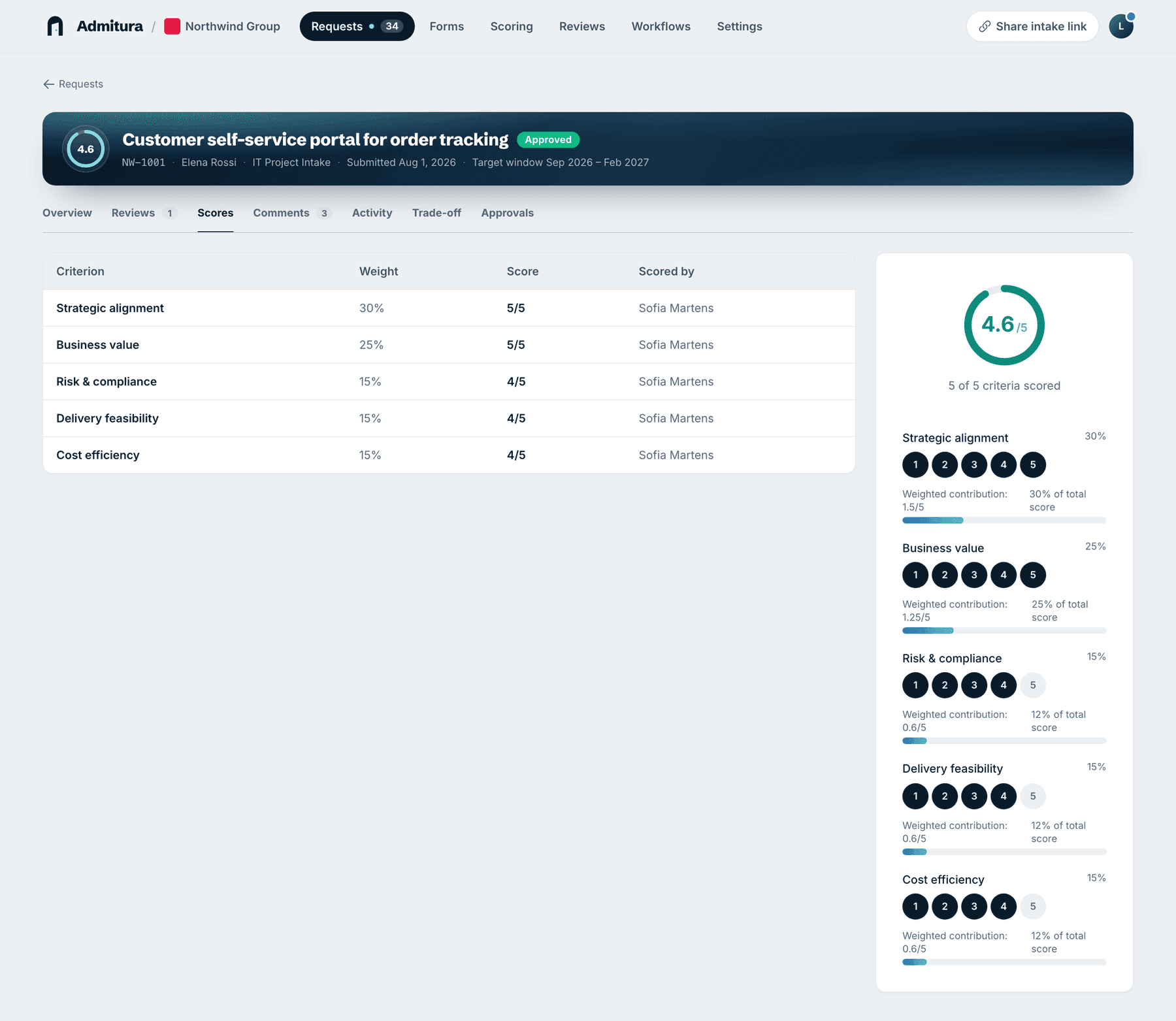
Scoring happens right on the request. Reviewers rate each criterion, and the weights you set for that process add up to one score. If a score changes, the ranking on the dashboard changes with it.
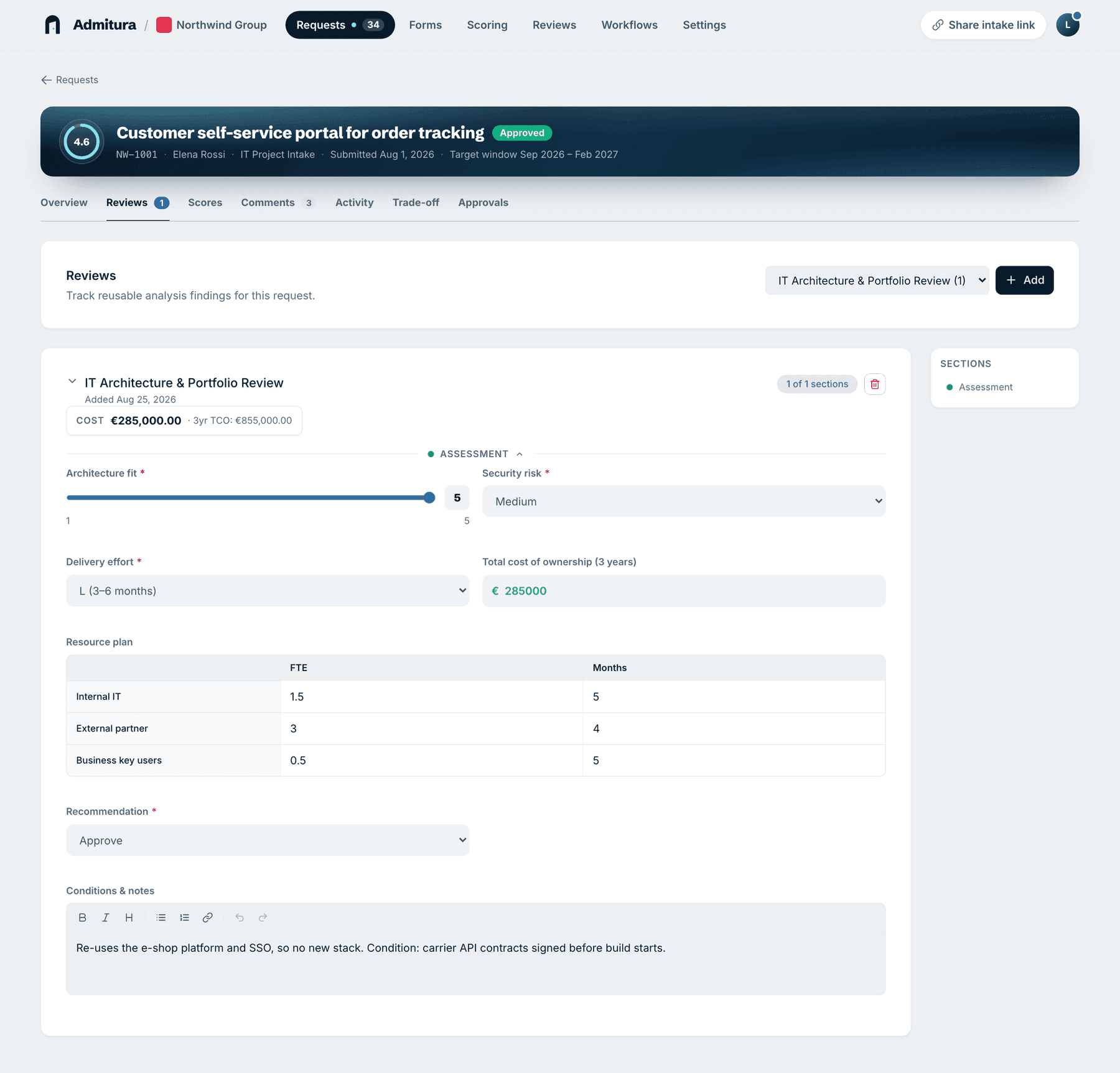
Reviews get the same treatment, and this is where most list setups fall apart. Instead of a Word template sitting in a document library, you build review forms in Admitura the same way you build the intake form: a feasibility review for the architect, a cost review for finance, a security check, whatever your process needs. You pick the fields, from sliders and Low-to-Critical risk levels to amounts, tables and free text.
Your team fills them in on the request's Reviews tab, so the architect's verdict and finance's numbers sit right next to what the requester asked for. Several people can each file their own review on the same request. A review saves as you type and stays a draft until someone confirms it, so nobody mistakes half a review for a conclusion. And if you mark one amount field as your budget field, those amounts add up on the dashboard, so you can see what everything in the pipeline is worth.
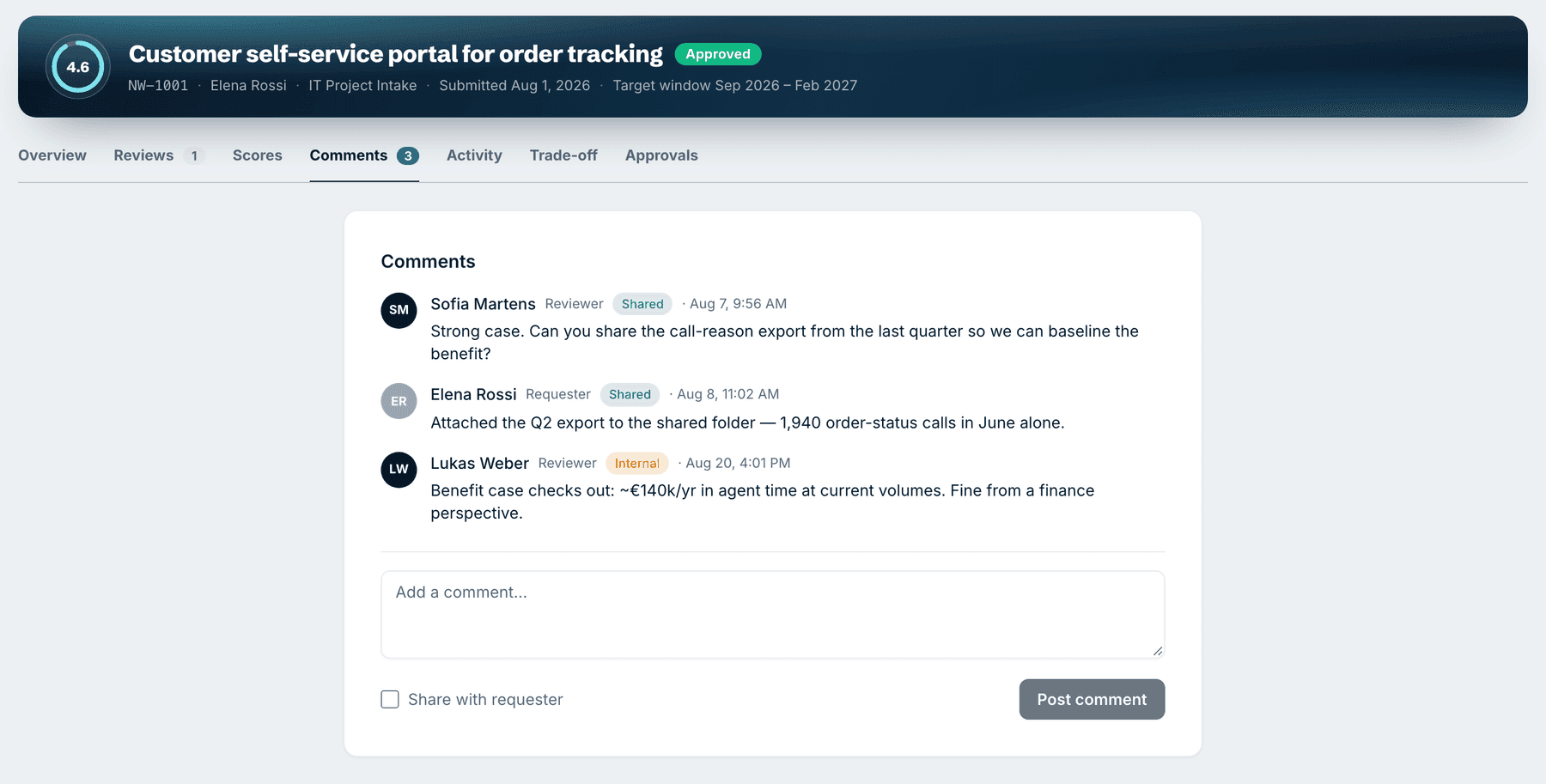
Comments live there too. You choose per comment whether it's internal or shared with the requester, who can reply from their own portal. The follow-up questions that used to vanish into email are now part of the request.
The Activity tab keeps track of everything that happened to the request, so "why did we decide this?" has an answer you don't have to reconstruct.
You can try all of this on the Free plan with one reviewer. Bringing in several reviewers is what Pro is for, at €15 per reviewer per month. Requesters are always free. The details are on the pricing page.
How to tell it's time to switch
A few honest questions:
- Does more than one person weigh in on a typical request? If yes, their input should sit on the request, not in separate files.
- Are requests competing for the same budget? Then you want scores people can compare. Our post on weighted scoring models explains how to set them up.
- Could you explain last quarter's decisions in five minutes? If that means opening a list, a spreadsheet, a document library and a mail thread, you're already paying for the scattering.
- Who looks after the Power Automate flows? If the answer is "nobody, really", count that in.
If you want to tighten up the process itself first, whatever tool you use, start with how to build a project intake process that doesn't create bottlenecks.
FAQ
Can a SharePoint list hold scores and reviews for a request? It can hold number columns and links to documents. It won't combine several reviewers' weighted scores for you or attach a structured review to an item, so most teams end up running a spreadsheet next to it.
What replaced SharePoint's built-in approval workflow? Microsoft recommends Power Automate. The old SharePoint 2013 approval workflow was fully retired on April 2, 2026.
Will Microsoft Forms run out of room? Almost certainly not. A work or school account can collect up to 5,000,000 responses per form. The limits teams run into are about where the scoring, reviews and discussion live.
Do we have to replace our list right away? No. If one person decides and you don't score requests, keep the list. Look again when more people start weighing in.
Admitura keeps a request, its scores, reviews and conversation in one place. Try it free.
Sources: Microsoft Support, "All about Approval workflows," checked 2026-10-09. Microsoft Support, "Form, question, response, and character limits in Microsoft Forms," checked 2026-10-09.