

How to Score Project Requests With Admitura
See how to score project requests with weighted criteria in Admitura, using a real IT team's example where the weights add up to exactly 100.
To score project requests, define a short list of weighted criteria once, rate each request against them on the same scale, and let the weights combine into one comparable number. In Admitura this happens under Scoring, and the weighted total shows as a ring on every request so your team can rank requests by more than gut feel.
Here's what that looks like for an IT team that gets around 30 project requests a month from other departments: new dashboards, a CRM integration, a mobile app rebuild, a data warehouse migration. Too many to approve on instinct, too similar in size to rank by cost alone.
What weighted scoring looks like
Say the team sets up four criteria under Scoring, with weights that add up to 100:
- Strategic impact — 40. How much does this move the needle on this year's goals?
- Cost efficiency / ROI — 25. Is the expected return worth the investment?
- Delivery effort — 20. How realistic is delivery with the effort required?
- Risk — 15. How manageable are the risks and dependencies?
Each criterion gets its own 0–5 scale (Admitura's default; you can pick another). A request that scores 4, 4, 3, 3 across those four criteria comes out to a weighted total of 3.65 out of 5 — high enough to clear a "customer portal redesign" request for prioritization, while a request scoring 2 on strategic impact sinks below the line even with a low cost.
In the example workspace, the IT Project Intake process uses five criteria instead: Strategic alignment 30, Business value 25, and Risk & compliance, Delivery feasibility and Cost efficiency at 15 each. The Scoring page shows the weighted-score formula next to the weight distribution, so you can check the total is 100%:
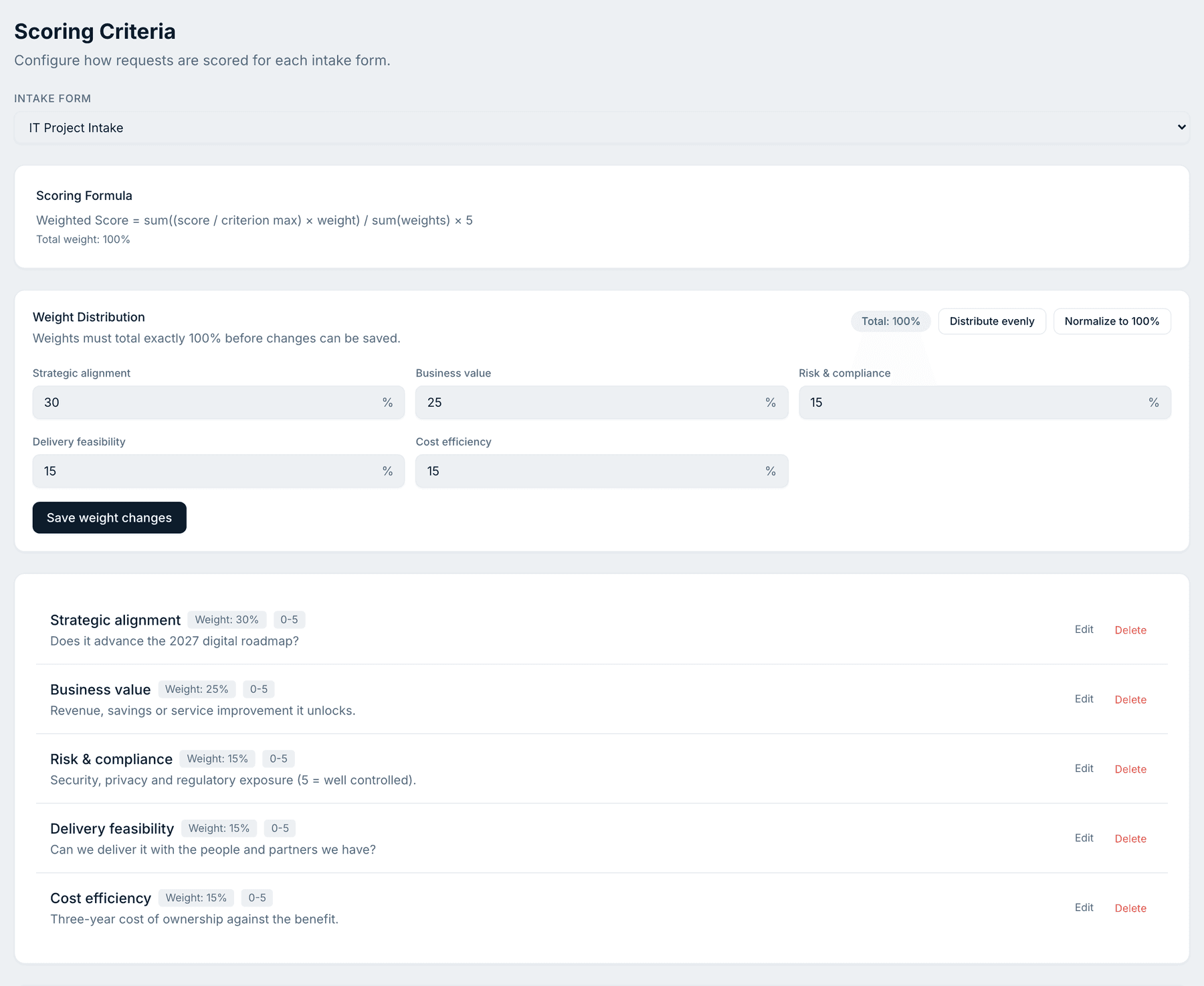
Setting up your criteria and weights
- Go to Scoring and add each criterion with a name, description and weight. Admitura shows the maximum achievable total as you go, so you can see the weights add up to 100 before you save.
- Go to Workflows and add stages for the requests to move through — for example New → Business Case Review → Prioritization → Approved / Rejected.
- Open a request and go to its Scores tab. Rate it against each criterion; the weighted total updates live in the ring.
- Save your scores. The Requests dashboard's Score sort and the Focus view's priority ordering both use this number.
On a scored request, the Scores tab lists each criterion with its weight and the score given, and the ring adds them up. This request from the example workspace reached 4.6 out of 5:
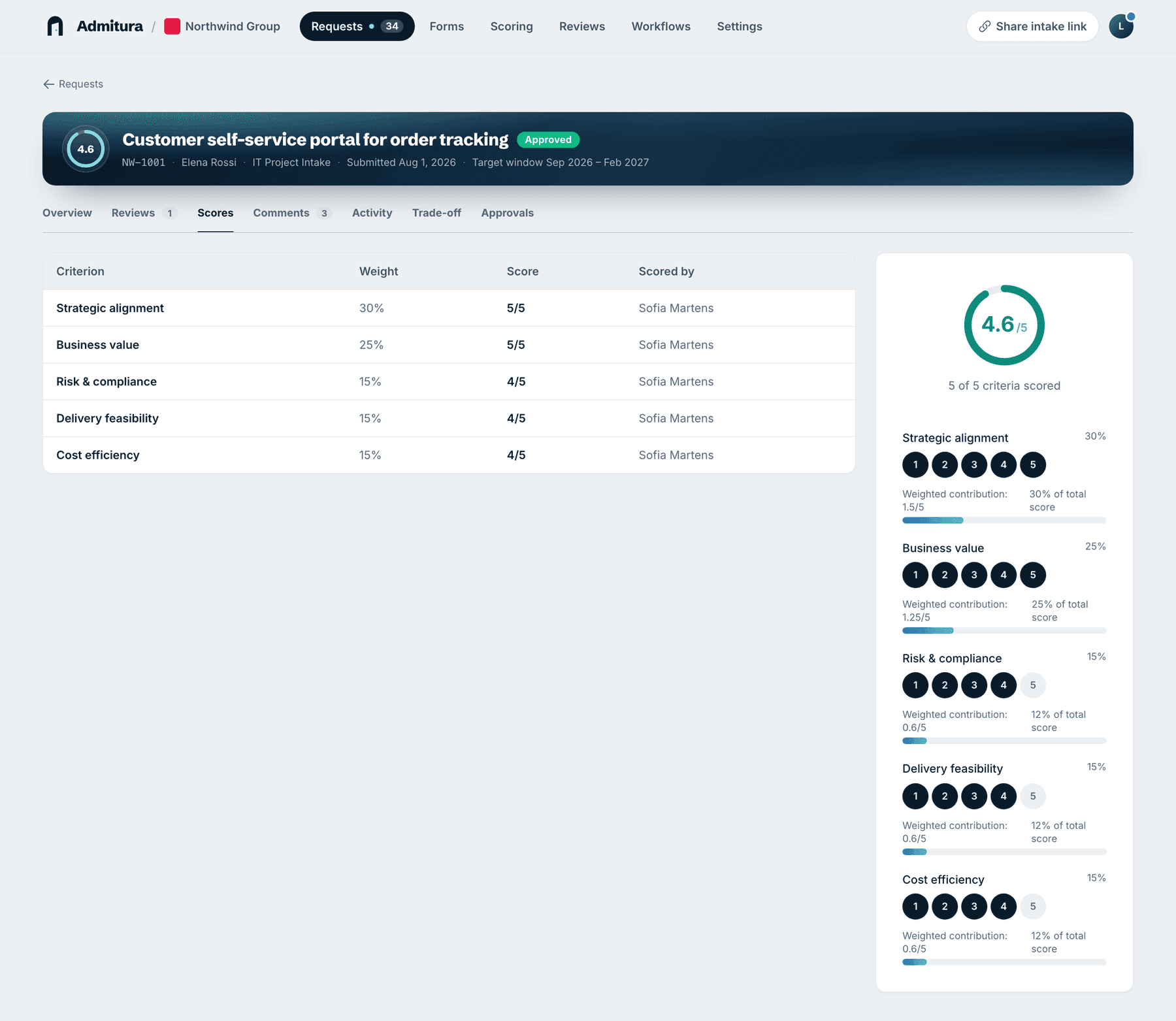
Scoring as a team, not just a person
Several reviewers can score the same request — finance might rate cost efficiency, a delivery lead might rate effort and risk. If you've turned on AI pre-review (Pro and Enterprise), a request also arrives with suggested scores marked with a ✦, which a reviewer adopts, adjusts, or overrides by scoring it themselves.
Tips for choosing weights
- Give your top one or two criteria most of the weight — if everything is weighted evenly, the score stops distinguishing anything.
- Write a one-line description for each criterion so two reviewers rate it the same way.
- Revisit weights after a quarter of real requests. If the ranking never matches what the team actually approves, a weight is off.
FAQ
What scale should I use for scoring criteria? Admitura defaults to 0–5, which is enough resolution for most criteria without reviewers agonizing over the difference between a 6 and a 7. You can choose a different scale per criterion.
Can scoring differ between request types? Yes — criteria and weights are set per form, so a project intake form and an idea submission form can score on completely different things.
Does AI replace reviewer scoring? No. AI pre-review only suggests a starting score, marked with a ✦ until a person scores the request by hand or adopts the suggestion as their own.
Admitura helps teams collect, score and decide on requests — try it free.